Neat Video Tutorial

A simple tutorial on how to use the Neat Video plugin for After Effects. This is one of the top noise reduction plugins available.

1. Select Your Layer
Make sure that the layer you are applying the noise reduction to is selected.
2. Click on the Effects Menu
3. Select Neat Video
Look down your list of effects and find the Neat Video plugin. Hover over the text and select Reduce Noise from the fly out menu.
4. Click Effect Controls
Click on the effect controls tab at the top left (Using the standard After Effects layout).
5. Click Options
Find the Reduce Noise effect in the effects panel. Click the text link for options.
6. Find a Uniform Area
Click and drag to select an uniform area on the frame that is showing. If you cannot find a uniform area, select an area that is dark and has the most noise. You can adjust the size of the selection area during this process.
7. Click Auto Profile
Click the auto profile button. The software will process your video and calculate areas of noise.
8. Quality Measurement
Notice the quality measurement on the right side of the interface. This tells the user how well the software feels it will be able to remove the noise in your video. The target should be about 80+ percent. This is hard to achieve when the video does not have a uniform area to select. It will stil do a good job with the noise at low percentages.
9. Click Noise Filter Settings
Click the noise filter settings tab to adjust the output of the noise filter.
10. Preview Toggle
While adjusting the settings it is helpful to toggle the preview button (This temporarily removes the filter). This is helpful to see how the video is being affected by the filter.
11. Luminance Adjustment
The adjusts how much reduction is applied to the video based on the luminance channel. Typically 60-80% is a good number.
12. Sharpening
Sharpening is like image recovery. When noise reduction is applied to video with any software interpolation occurs. This means that the software guesstimates the pixels the should replace the noise based on the other pixels in the image. This causes soft edges in the video. This adjustment corrects some of that softness. Typically about 20% is the limit for sharpening due to the unrealistic look it can cause.
13. Brightness
Sometimes when noise reduction is added it causes the video to become darker than the orginial. This adjustment at the bottom of the interface allows the user to birighten the video back up.
14. Apply
Once you have the desired look for your video you can apply the noise reduction filter by clicking the apply button. This will close the options window.
15. Continue working
Now that you have the filter applied you can continue working on your project. If you find that your video needs more adjustment you can edit the filter by clicking on the options link in your effects panel. Please note that any filter/effect that works on a per pixel level will increase your render times. This plugin is no different.

Neat Video Resources

Purchase Neat Video

Other Tutorials

User Guides

User Guides

What is a CMS?

What is a Content Management System

What is a CMS (Content Management System)?

A CMS also known as a Content Management System is a piece of computer software that runs on a web server and allows content editors to manage their website content. A content editor is anyone who will make changes on a website whether it’s the secretary or the owner of a company. There are different types of CMSs for different uses IMHO (In my humble opinion) although some designers and developers have one CMS that they feel is good for all of their projects. This is often related to the size and complexity of the project. Some of the best CMSs are WordPress, Joomla, Drupal, Expression Engine, and Text Pattern. Alpha Omega Design has used WordPress, Drupal, and Joomla in past projects but, we almost exclusively use WordPress now as it is able to handle very large and complex projects.

So, what is it? A CMS gives the content editor an easy to use interface for editing content often without any need to know HTML, CSS, or JavaScript. Although you don’t necessarily need it I recommend that content editors have a basic understanding of at least HTML. You may hear someone say “Does your website have a WYSIWYG (Pronounced wisiwig) editor?” WYSIWYG editors are a common part of all CMSs and this is the area where you add text, images, and videos. If you have used Microsoft Word you can likely use a WSIWYG editor in one of the CMSs mentioned here. In addition to giving the editors an easy interface to use, the CMS also provides the designers and developers a more efficient way to mange the websites design and development. The CMS will often allow parts of the website to be duplicated with one management point. This helps the site maintain more consistent design and features. There is a lot more that CMSs do but I have covered the most important here to give you a more informed decision making process.


I hope this is helpful for your ministry, non-profit, or business. Thanks and God Bless!


What Is A Server?

What is a server?

What Is A Server

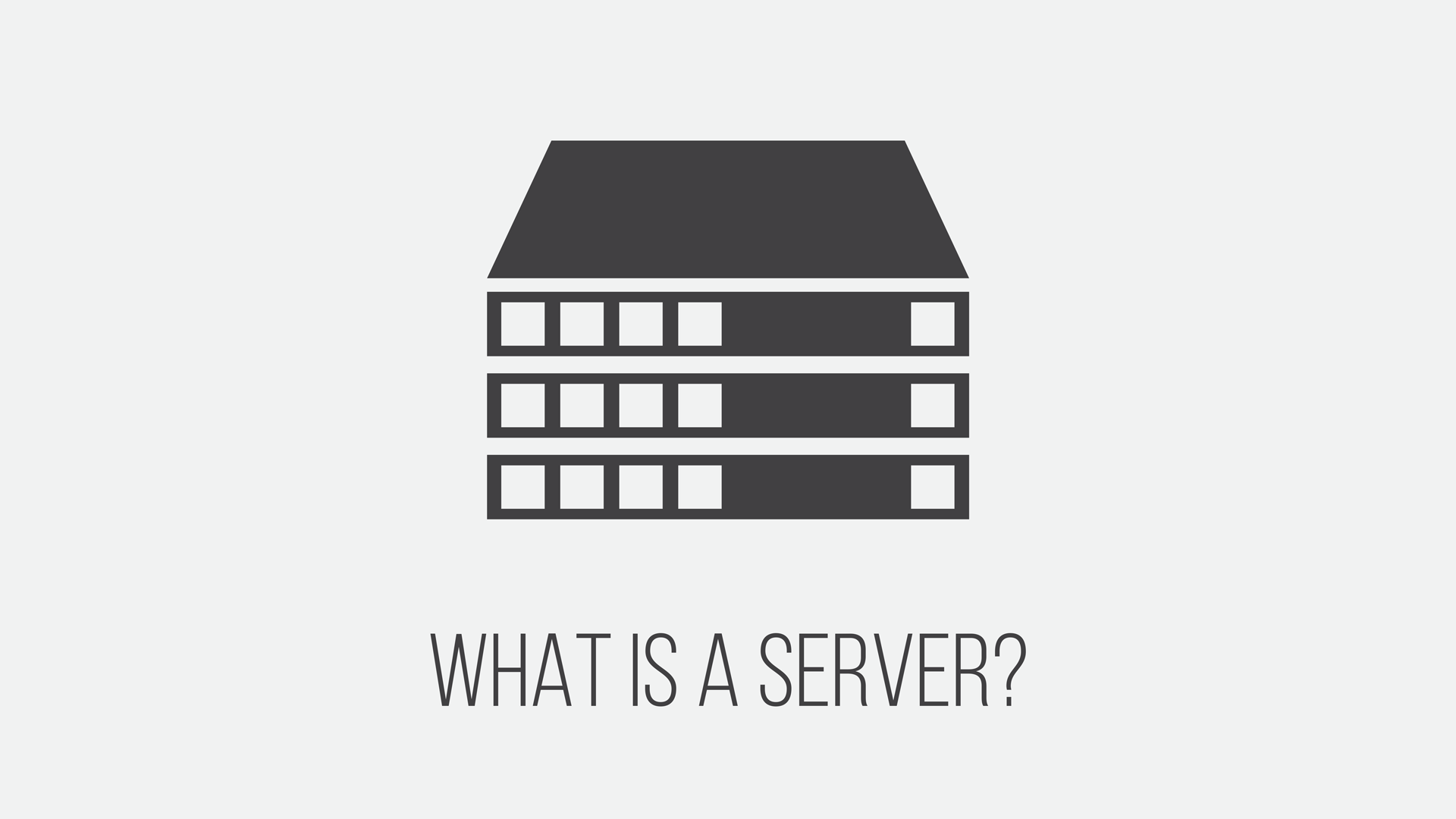
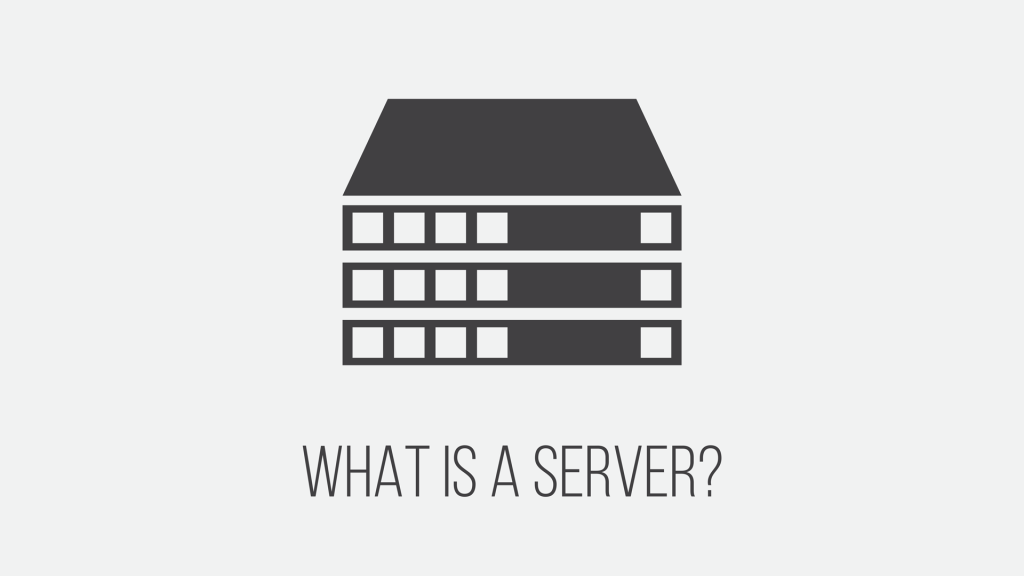
In short, a server is software that runs on a computer used to serve data to clients (other computers). Servers come in a lot of different models and use different operating systems just like PC’s that you would see at Best Buy. Most servers look different than your average PC, they are often not very tall about 19″ wide and fairly deep. This is because servers are typically used in equipment racks so the small form factor allows data centers to put a lot of servers in smaller spaces. The graphic above is an illustration of three servers and this is commonly how they are stacked in an equipment rack. Servers are typically very focused in the tasks that they accomplish. For instance, this website is running on a web server. This type of server is built for running websites. There are other types of servers other than web servers, in fact, there are a lot more. Some of the other types of servers include application servers, database servers, file servers, media servers, and mail servers to name a few. It takes a lot of “behind the scenes” action to make the technologically advanced world that we live in work. Servers are part of the core of many services and technologies.

Server Operating Systems

Some of the most common server operating systems are :

Common Server Applications

Some Common Server Applications are:

I hope that this gives you enough to handle those “techies” at the coffee shop. If you have questions please leave them in the comments.