How To Use Revolution Slider

The short tutorial below shows how to use the popular SliderRevolution (A.K.A Revolution Slider) slider plugin. If you have this slider already installed or are thinking about installing a slider this post will be helpful for you. Watch the video below and leave your questions in the comments or contact us.

Purchase Revolution Slider: http://codecanyon.net/item/slider-revolution-responsive-wordpress-plugin/2751380

How to add a category in WordPress


Adding categories in WordPress is a common action that you will take as a site maintainer. It is a straightforward process to add new categories. By default WordPress has one category, uncategorized. You will need to make sure that you assign any “uncategorized” content to other categories that will be beneficial to your users. Let’s get started.

Step 1


Click on Categories located under “Posts” in the sidebar navigation. See Below.
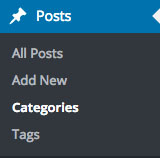
Wordpress Category Link

Step 2


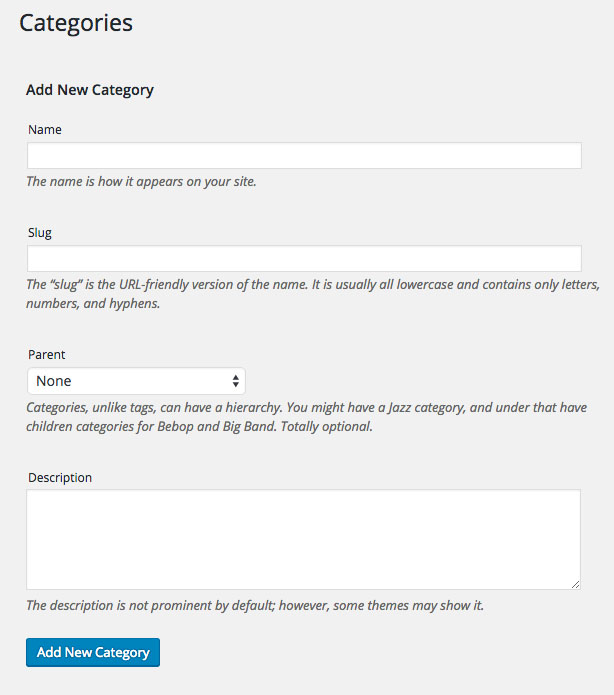
Fill in the fields in the form on the Categories page.
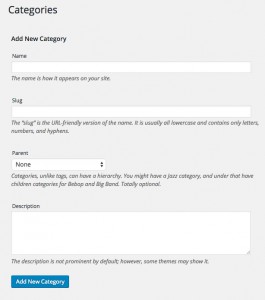
Wordpress Category Form

Step 3


If your category does not have a parent category click “Add New Category” as seen above. If your category is part of a another category such as “Books”, “News”, “Coupons”, etc… You can select the parent category in the “Parent” dropdown list seen below.

Step 4


Check your category list to confirm that your category was add in the proper relationship.

Categorizing your content can be very helpful for users trying to navigate your website. You can guide through your content using these simple tools. Share this with your friends who may have the same questions that you have.

Thanks!
Adding Audio To WordPress Using Amazon S3

This tutorial shows how to add audio that you produce or rip from a cd (Instructions on Ripping a CD on Windows). Once you have your audio file you can easily upload it to AWS (Amazon Web Services) to be used for delivery on your Wordpress website.


This tutorial (No audio) shows how to add audio that you produce or rip from a cd (Instructions on Ripping a CD on Windows). Once you have your audio file you can easily upload it to AWS (Amazon Web Services) to be used for delivery on your WordPress website. This tutorial uses the JW Player plugin to add the video to the post. Enjoy the video and leave any questions or comments below.

Boost Your WordPress Videos Using Cloud Technologies

Learn how to Boost Your WordPress Videos Using Cloud Technologies.

Watch the video above to learn how to use AWS (Amazon Web Services) with JW Player to boost your WordPress videos. Topics covered will include:

  • AWS S3 Setup/Use
    AWS CloudFront Distribution Setup/Use
    AWS Elastic Transcoder Setup/Use
    How to install the JW Player plugin
    Using the JW Player plugin in your posts

Neat Video Tutorial

A simple tutorial on how to use the Neat Video plugin for After Effects. This is one of the top noise reduction plugins available.

1. Select Your Layer
Make sure that the layer you are applying the noise reduction to is selected.
2. Click on the Effects Menu
3. Select Neat Video
Look down your list of effects and find the Neat Video plugin. Hover over the text and select Reduce Noise from the fly out menu.
4. Click Effect Controls
Click on the effect controls tab at the top left (Using the standard After Effects layout).
5. Click Options
Find the Reduce Noise effect in the effects panel. Click the text link for options.
6. Find a Uniform Area
Click and drag to select an uniform area on the frame that is showing. If you cannot find a uniform area, select an area that is dark and has the most noise. You can adjust the size of the selection area during this process.
7. Click Auto Profile
Click the auto profile button. The software will process your video and calculate areas of noise.
8. Quality Measurement
Notice the quality measurement on the right side of the interface. This tells the user how well the software feels it will be able to remove the noise in your video. The target should be about 80+ percent. This is hard to achieve when the video does not have a uniform area to select. It will stil do a good job with the noise at low percentages.
9. Click Noise Filter Settings
Click the noise filter settings tab to adjust the output of the noise filter.
10. Preview Toggle
While adjusting the settings it is helpful to toggle the preview button (This temporarily removes the filter). This is helpful to see how the video is being affected by the filter.
11. Luminance Adjustment
The adjusts how much reduction is applied to the video based on the luminance channel. Typically 60-80% is a good number.
12. Sharpening
Sharpening is like image recovery. When noise reduction is applied to video with any software interpolation occurs. This means that the software guesstimates the pixels the should replace the noise based on the other pixels in the image. This causes soft edges in the video. This adjustment corrects some of that softness. Typically about 20% is the limit for sharpening due to the unrealistic look it can cause.
13. Brightness
Sometimes when noise reduction is added it causes the video to become darker than the orginial. This adjustment at the bottom of the interface allows the user to birighten the video back up.
14. Apply
Once you have the desired look for your video you can apply the noise reduction filter by clicking the apply button. This will close the options window.
15. Continue working
Now that you have the filter applied you can continue working on your project. If you find that your video needs more adjustment you can edit the filter by clicking on the options link in your effects panel. Please note that any filter/effect that works on a per pixel level will increase your render times. This plugin is no different.

Neat Video Resources

Purchase Neat Video

Other Tutorials

User Guides

User Guides

What is WordPress?

What is WordPress

What is WordPress?

WordPress is a popular blogging software and CMS. It started out as a tool for bloggers to build blogging websites. Now it is often used to build websites other than blogs. In fact about 23% of websites on the internet use WordPress. There is two different types of WordPress and this is important to know. One kind of WordPress is WordPress.com and the other is WordPress.org. WordPress.com is owned by Automattic whose founder created WordPress. This version is hosted for you and has some limitations. WordPress.com is great for most blogging websites that don’t want to be responsible for the management of the code and dealing with a host. WordPress.org on the other hand gives you or your developer most of the responsibility for the site. You will purchase the hosting, you will download and install the software, and you will be responsible for the updates. This type of WordPress installation can offer more flexibility to modify and scale the site in the future. This software is very popular and has great community support and documentation. I recommend taking a look at the features of both and deciding which one is best for you. If you still are uncertain you should contact a developer such as Alpha Omega Design.

If you have questions about WordPress leave them in the comments below or contact us. Thanks for reading!

What is HTML5?

What is HTML5

What is HTML5?

HTML5 is commonly talked about amongst web designers, marketing agencies, mobile developers, etc. You may find yourself sitting in a meeting with a web designer or developer and they start talking about using HTML5 or you may be searching for a CMS theme and find one that says “Built using HTML5.” In order to appreciate what it is, lets’s debunk a couple of myths. First, HTML5 by itself does not provide animation. Second, CSS3 and jQuery are not part of HTML5 although they are commonly used in conjunction with HTML5.

So what is it? Here is the definition given by the W3C, the organization responsible for overseeing the HTML spec, “The 5th major revision of the core language of the World Wide Web: the Hypertext Markup Language (HTML).” All websites output their content into this core language called HTML. The web browsers that we use to surf the web can only read content that has been rendered via HTML. HTML5 is the newest spec for for the base language of the web. The reason that it is advertised so much is that this version allows for things like video and audio playback in the browser without Flash or other plugins, more semantic elements that more accurately describe the content that is in them, and new form features. This latest HTML spec has allowed designers and developers the give their clients cleaner and more interactive experiences. If your website is not using HTML5 Validator you should consider having someone look at it to see if it can be updated. HTML5 is beginning to help all of us be more creative and semantic in the websites and applications that we build.

If you have questions about this subject leave them in the comments below.

Thanks and God Bless!

What is a Domain Name?

What Is A Domain Name

What is a Domain Name?

Alpha Omega Design works with a lot of clients that need websites or have websites and domain names. Most people have heard the term “Domain Name” before but, we thought we would actually explain what it is and how it works. In order for us to truly understand what it is we must understand the humble beginnings of the internet. Originally websites on the internet we located with numbers called IP addresses and they still are today but, these numbers were hard to remember. You may have seen an IP address before and it looks something like this, 192.168.1.45, or similar. The XXX.XXX.XX.XX structure is common for IPV4 Address addresses. In response to this problem the Domain Name Service or System (DNS) was created. This system allows the IP address for a website to be translated into an alphanumeric string ie. www.somesite.com. When you start to create a business or ministry this is something that you should consider during the naming phase of your business or ministry. Since domain names are words, two websites cannot have the same domain name. Alpha Omega Design can help you with the domain name searching process if you need it. Once you purchase a domain name it may take some time before you are able to access that domain name due to a process called replication. During this process the worldwide database that comprises the DNS (Domain Name System) is populated with the IP address and the appropriate name that points to it. If a domain name has a lapse in payment to the domain name provider and the domain name is suspended or “parked”, once the domain name provider reinstates the domain it will take some time before the domain name will be accessible throughout the internet. Once your domain replicates everyone will be able to enjoy your great website.

If you have a question about your domain or getting a domain let us know what it is and we will try our best to answer it for you.

Thanks and God Bless!

Landscape Photography

Landscape Photography

Fun Friday Winner 04-25-15 - Landscape Photography

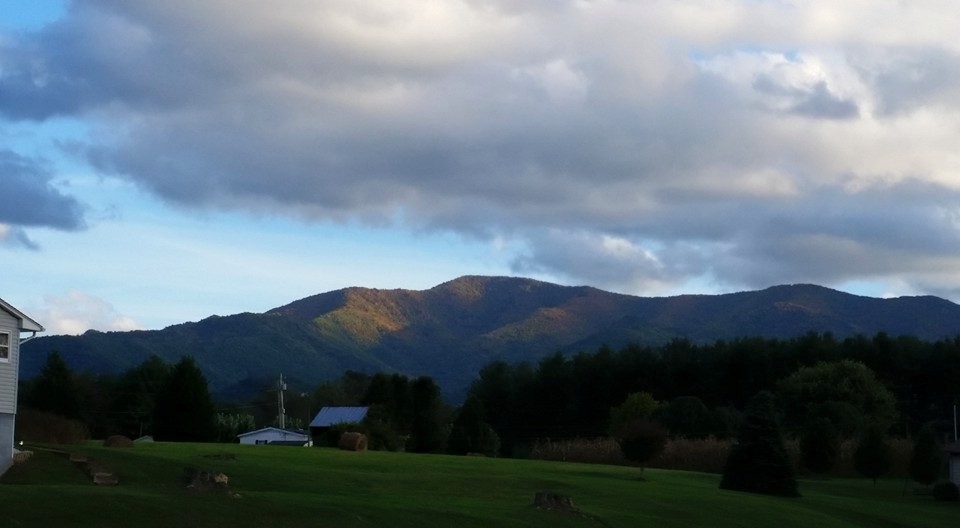
This photograph was submitted by SueEllen Ainsley. The photograph was taken in Haywood County, North Carolina. It captures the beautiful mountains that can be found throughout Western North Carolina. The photograph captures the contrast of the clouds above the mountains and small glimmers of sun coming them. This type of photography can be difficult to capture. There are a lot of factors that go into getting the right landscape picture but, the right place and the right time sure can be a help. Landscape photographers often scout a location for months at a time to find the right conditions for the picture they are trying to get. A good weather app and some good hiking shoes can yield some amazing results. The best way to get good pictures is to take lots of them. So, get outside and go exploring and take some pictures.

Thanks for your time! God Bless!